
Security UX
Online security is more than just eliminating buffer overflows from software. One of our biggest security challenges is helping people make safe decisions while they surf the web. Here are some of the things we're doing to make security on the web easier for everyone — both people who use browsers and web apps, and web app developers. Some of these points are discussed in more detail in Improving Chrome’s Security Warnings by Adrienne Porter Felt.
Anti-malware
Malicious Websites
Malicious or compromised websites try to attack visitors. To protect people from these threats, Chrome uses Safe Browsing to identify attack websites. If Safe Browsing tells Chrome that a website is malicious, Chrome shows a full-screen warning. Despite the fact that our warnings are rarely wrong, people ignore the warnings nearly a fifth of the time. We are actively running experiments with the goal of decreasing how many people ignore the warnings.
Malware Downloads
Shady websites also try to trick people into installing malicious programs on their computers. By default, Chrome blocks known malware downloads. Chrome also warns people about potentially dangerous files that have not been scanned; we are trying to improve this generic warning with new security measures. For example, we want to make it easier for people to view PDFs more safely without needing to show warnings about PDFs.
Passwords And Phishing
Password management is hard. Sometimes people choose weak passwords, re-use passwords inappropriately, or type passwords into phishing websites. The browser currently offers people minimal assistance in choosing good passwords or knowing when to enter them. We're currently using Safe Browsing to help warn people about phishing pages, but we're also working on other ways to make authentication on the web easier and safer.
Website Authentication
Website authentication is paramount to online security. We know that current HTTPS indicators and warnings are confusing, and they are often false positives. The browser’s lack of confidence about the authenticity of a given TLS connection forces it to offer people a choice that they are not likely to understand, so we're working on ways to improve website authentication and protect users from inadvertently visiting or interacting with sites they don't intend to. Here are some of the things we're currently working on:
- HTTP Strict Transport Security (HSTS) adoption and pre-loading
- Developing a standard for SSL certificate public key pinning
- SSL evangelism, support, and other odds n' ends (e.g. "got TLS?" tech talk, blocking HTTP basic auth)
- Making the warning more understandable
Read more about TLS support in Chromium on our TLS education page.
Presenting Origins
The fundamental security boundary on the web is the
origin, defined as the
tuple (scheme, hostname, port). For example, (https, www.example.com,
443). We must surface this boundary to people during browsing, in
permissions/
Because people (including developers!) tend not to understand the concept of the origin, but do tend to understand the concept of the hostname, we'd like to simplify origin names when we can. Ideally we could reduce the origin name to just the much more understandable hostname. For example, we could elide the scheme or replace it with a meaningful icon, if doing so did not prevent people from understanding whether or not an origin is authenticated. And if the port is the default port for the given scheme, we can elide it, too.
If the feature or behavior we are trying to protect is available only on authenticated origins — which we strongly suggest — you could leave off the scheme or the icon. Otherwise, it might be better to highlight the non-authenticated nature of the origin when presenting it.
In addition, we strongly recommend that UIs clearly mark unauthenticated origins as such.
A good utility function to use for presenting URLs in security decision contexts is url_formatter::FormatUrlForSecurityDisplay.
Eliding Origin Names And Hostnames
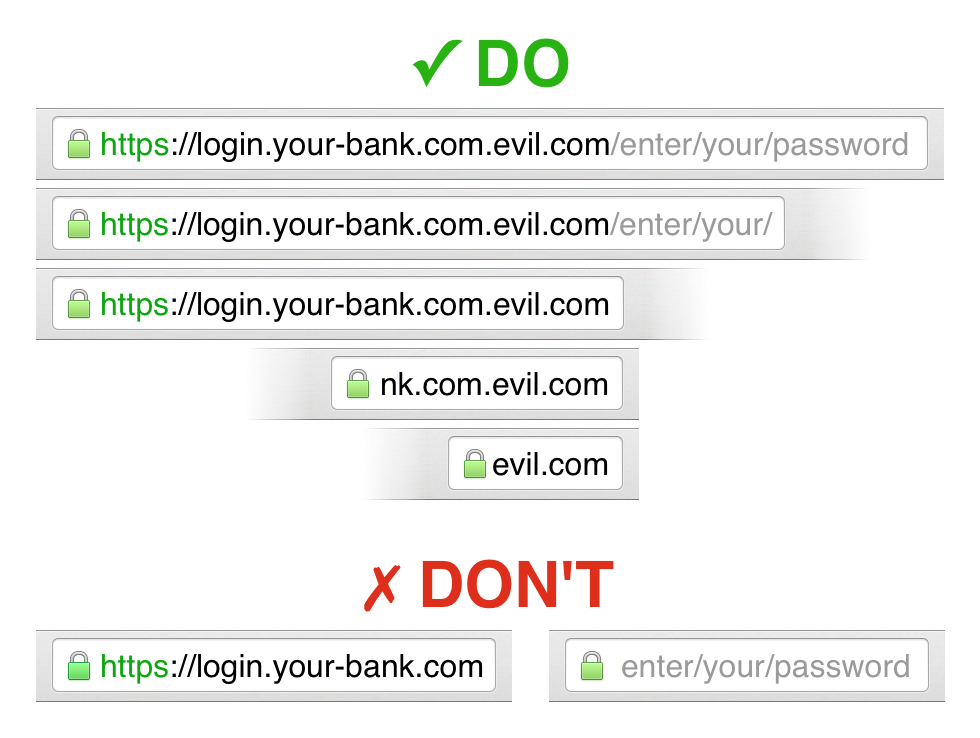
The effective top-level domain (eTLD) of a hostname is the TLD as found in the Public Suffix List (PSL), which is not necessarily guaranteed to be a single label like "com". Some eTLDs found in the PSL have more than one label, e.g. .co.jp, and others are the names of web sites that give out subdomains for user content and code from many sources, like .appspot.com and .github.io. For many purposes, these multi-label names are effectively TLDs, hence the name.
At a minimum, we would like to show users the eTLD + 1 label, e.g.
pumpkins.co.jp, google.com, noodles.appspot.com, or example.org. Where possible,
it is best to show the entire hostname, however. If the hostname is too long,
and/
Although domain name labels are limited to 63 octets and the entire name is
limited to 255 octets (see https://www.ietf.org/
Permissions
The browser grants privileges to apps, extensions, and websites after asking the
person for permission. In some cases, the browser also uses status indicators to
indicate when an origin is accessing a granted permission. We currently don’t
have quantitative data on how well these pieces of UI work, but we have
anecdotal evidence suggesting they fail to capture people's attention and/
- Creating experiments and collecting data to quantify how effective Chrome's permissions systems are
- Designing new types of analyses to measure the threat of extensions, apps, and websites
- Designing new ways to communicate permission information to end users
Goals For The Origin Info Bubble discusses a way to make permissions easier for people to manage.
Usability Measurement Tools
Calculate the effective contrast ratio of text on its background:
http://webaim.org/
Another contrast checking tool: Contraster
Flesch-Kincaid (and other) readability calculator: http://www.readability-score.com/
Simulate the effects of colorblindness:
http://www.etre.com/
Documents
- Chrome Security UX (Enamel) Public Folder
- Security guidelines for Chrome Extension & App API developers
If you are a Googler, you can access the folder of Google-internal Enamel
documents at go/